
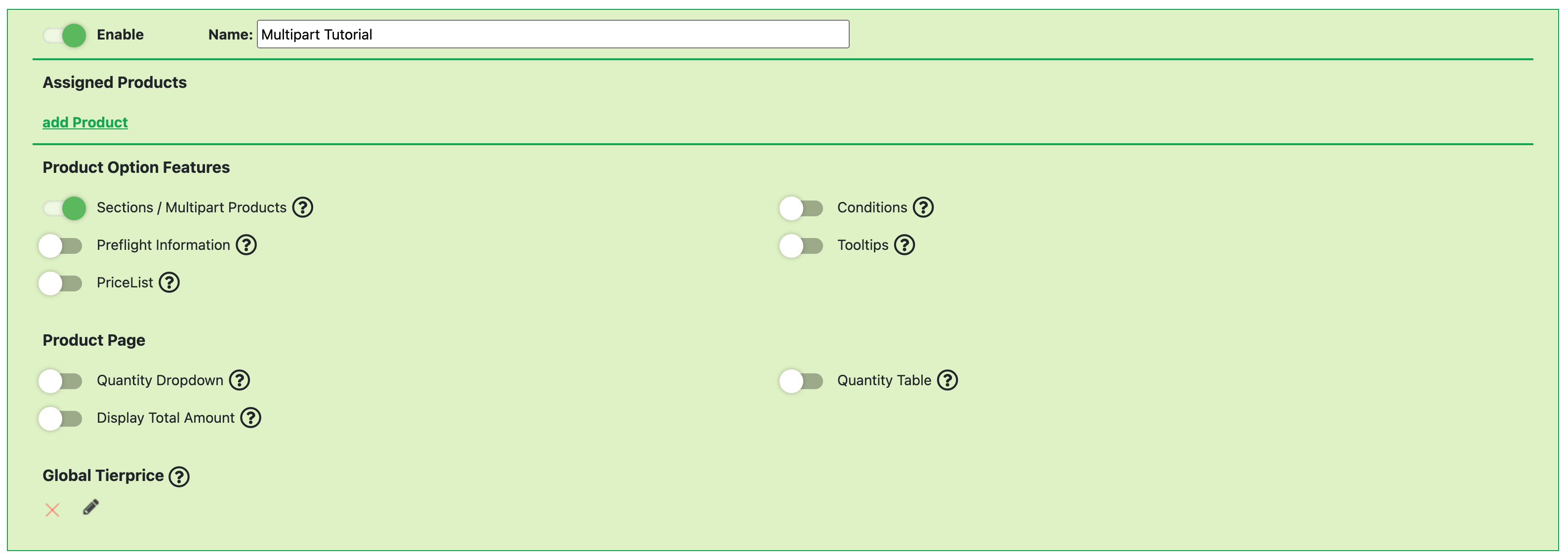
With this feature, options can be structured into groups. After activating it, the following two points become visible at the bottom:

-
Section: Add a new group
-
Personalize Section: A group that contains the "Design" button and can be freely placed. This requires a link to an option with a printformer template.
By clicking on "New Section," the name of the section can be adjusted.
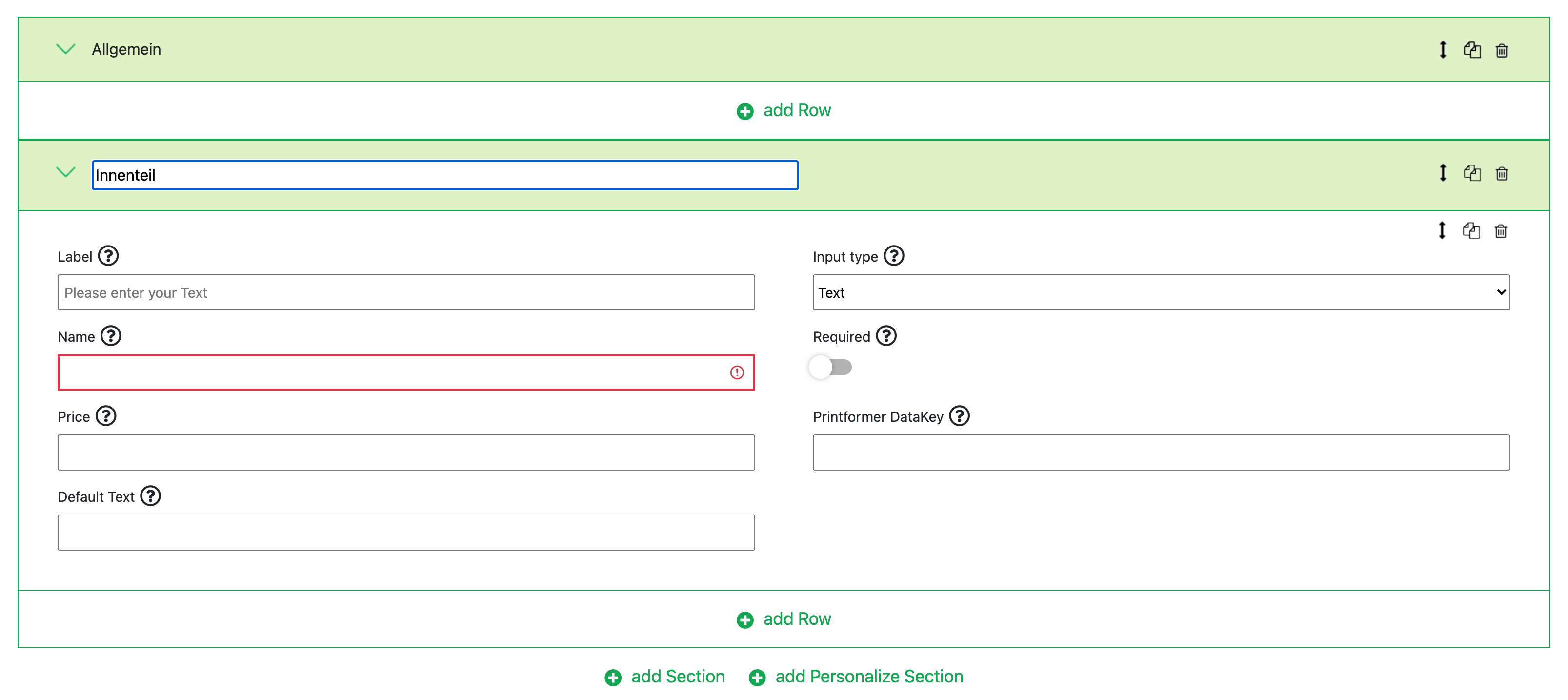
Within the section, you can then add as many options as needed. The icons on the option or section allow you to move, duplicate, and delete them. Options can also be moved between sections.

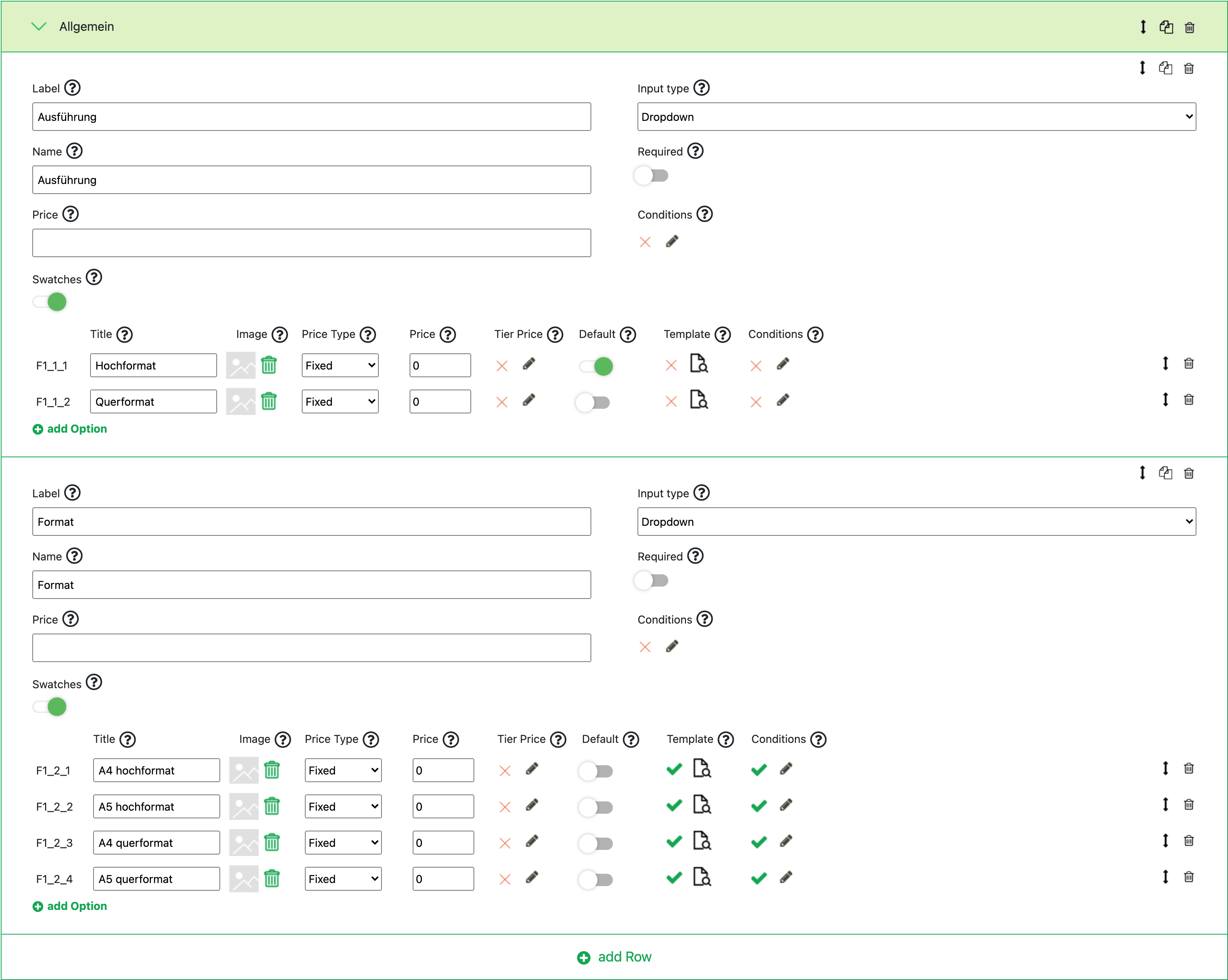
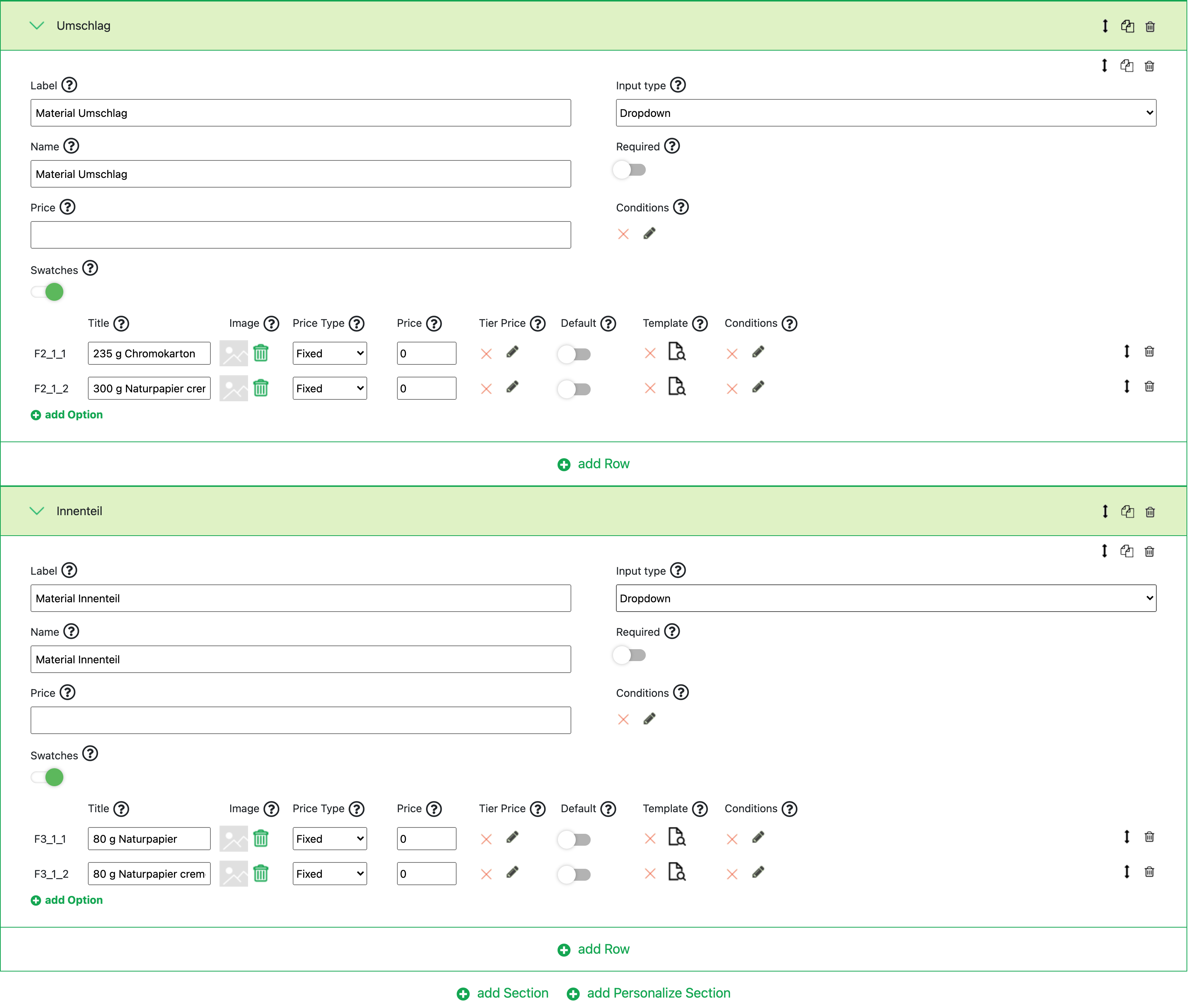
The following example demonstrates a simplified use case for utilizing sections:
On the product page, it is then presented as follows:
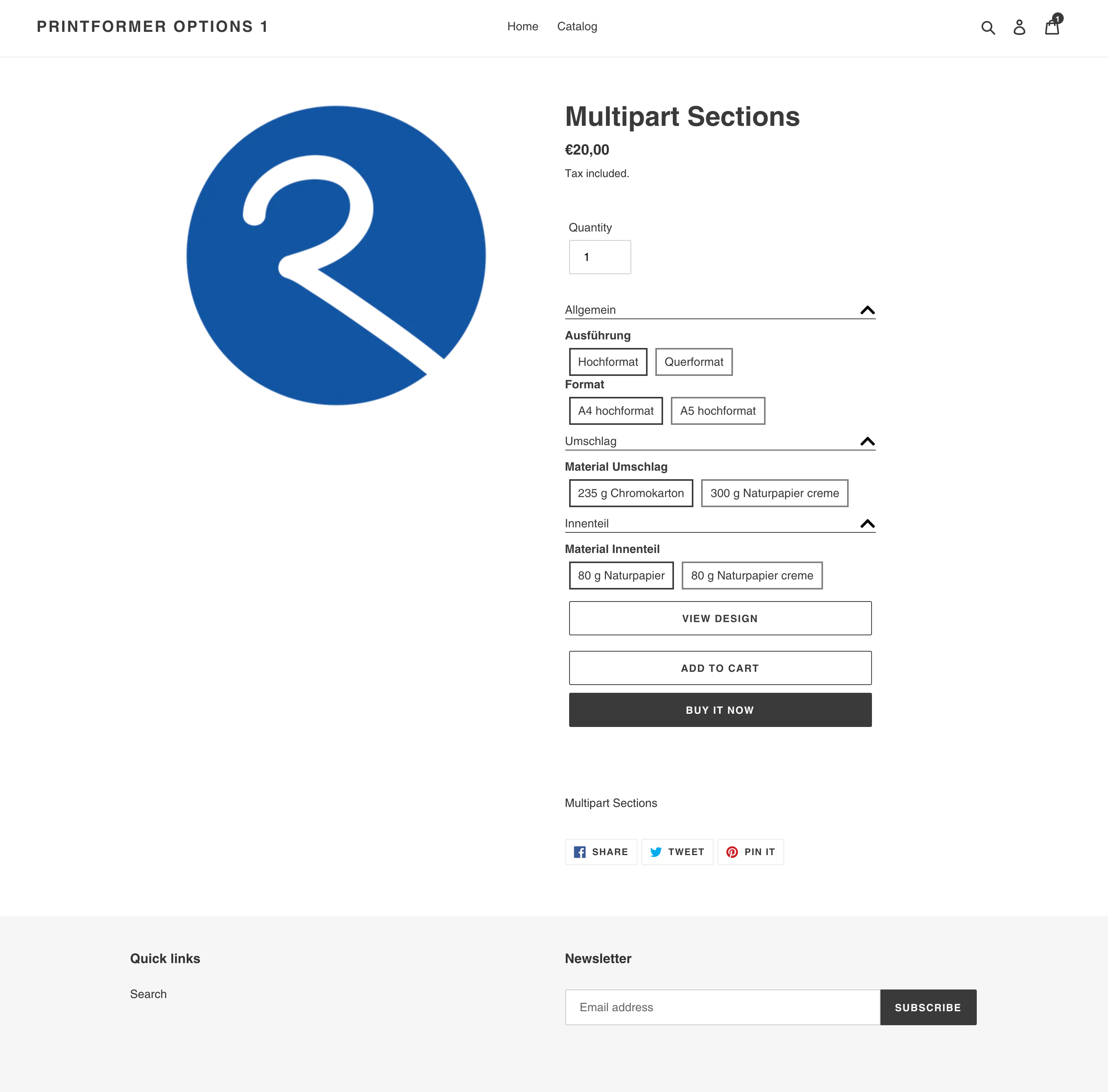
In this example, the printformer editor is opened depending on the "Format" option. A different template is called when opening the editor based on the selection. If you want to place this editor call in a section as well, perhaps because multiple editor calls are needed (e.g., interior and cover), this can be done by adding a personalized section:

In the dropdown, all sections with a template link are displayed. Within "General," there is the "Format" option, which has a link to printformer templates.