To get a Editor URL and jump into the editor we need to go through the following steps:
-
Create user
-
Create draft for template
-
Generate JWT
-
Create url to jump into the editor
-
Add callback URL and callback_cancel URL to JWT to extend redirection options
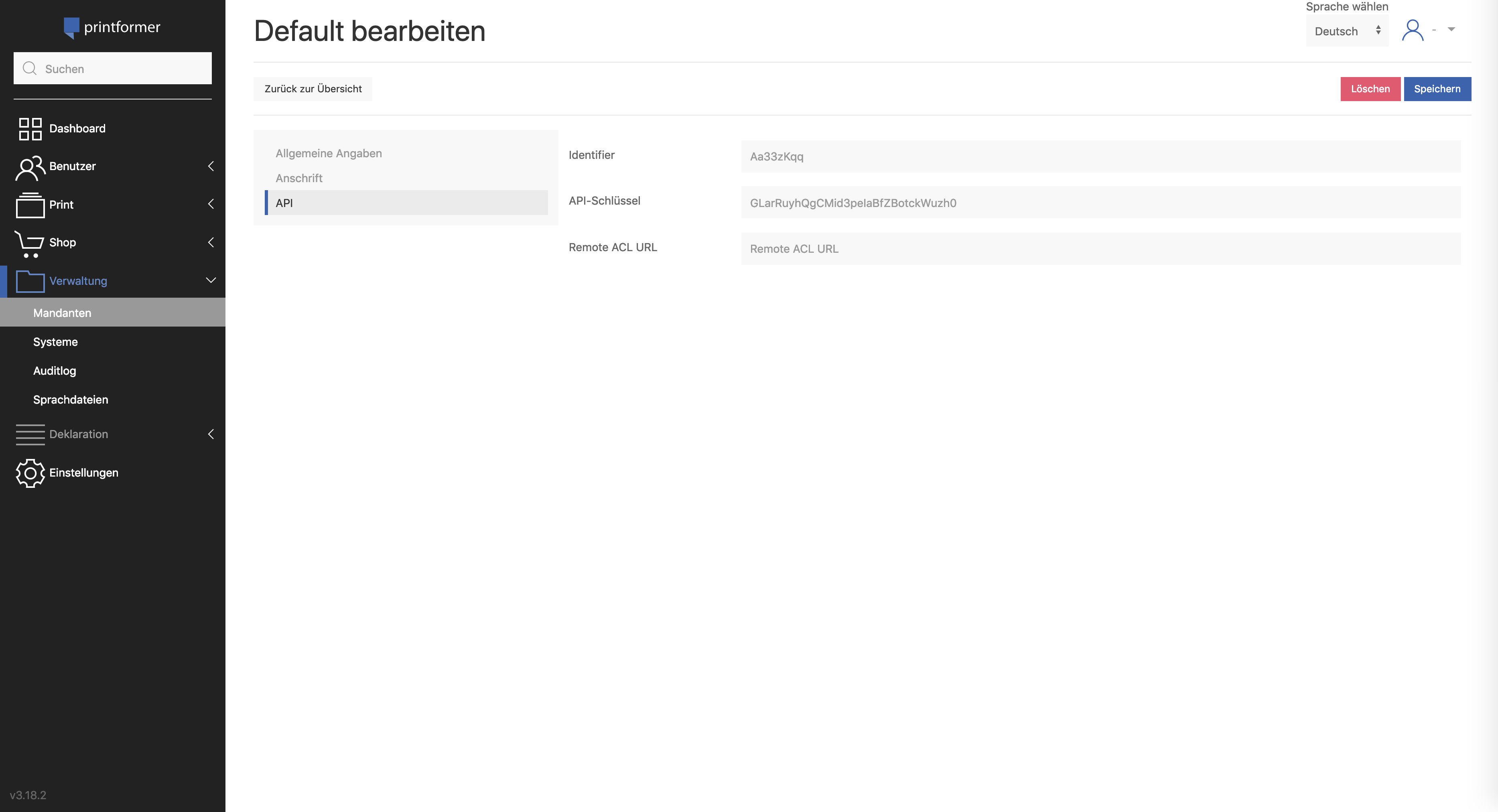
For this example you need a API-Key and Identifier that you can find after printformer login in your client API section.
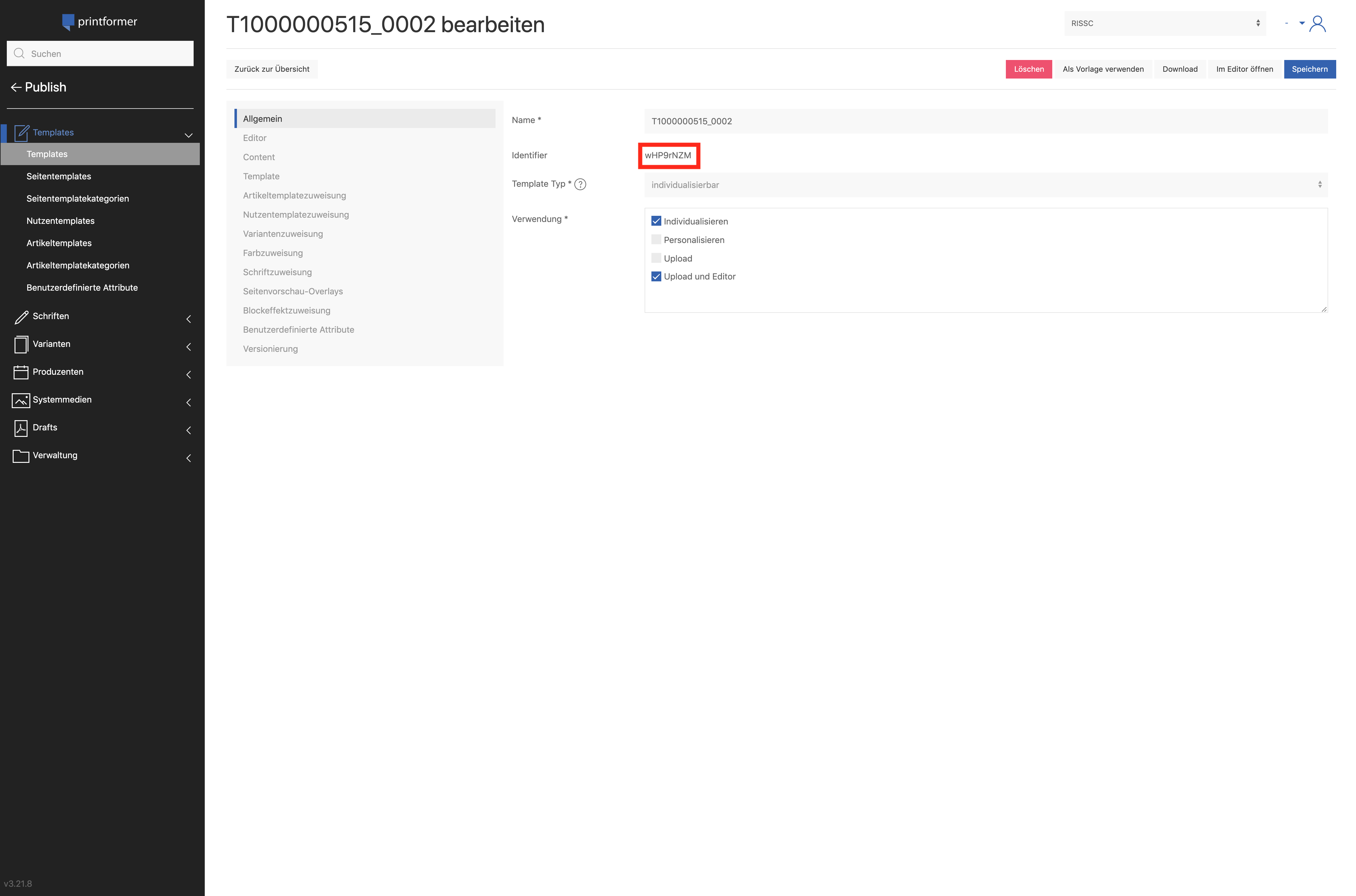
Also we need a template identifier that you can find in the template detail page that you can find under »Print« → »Templates« → »Select Template«. You also can call method “api-ext/template” to get all templates with all informations.
1. Create user
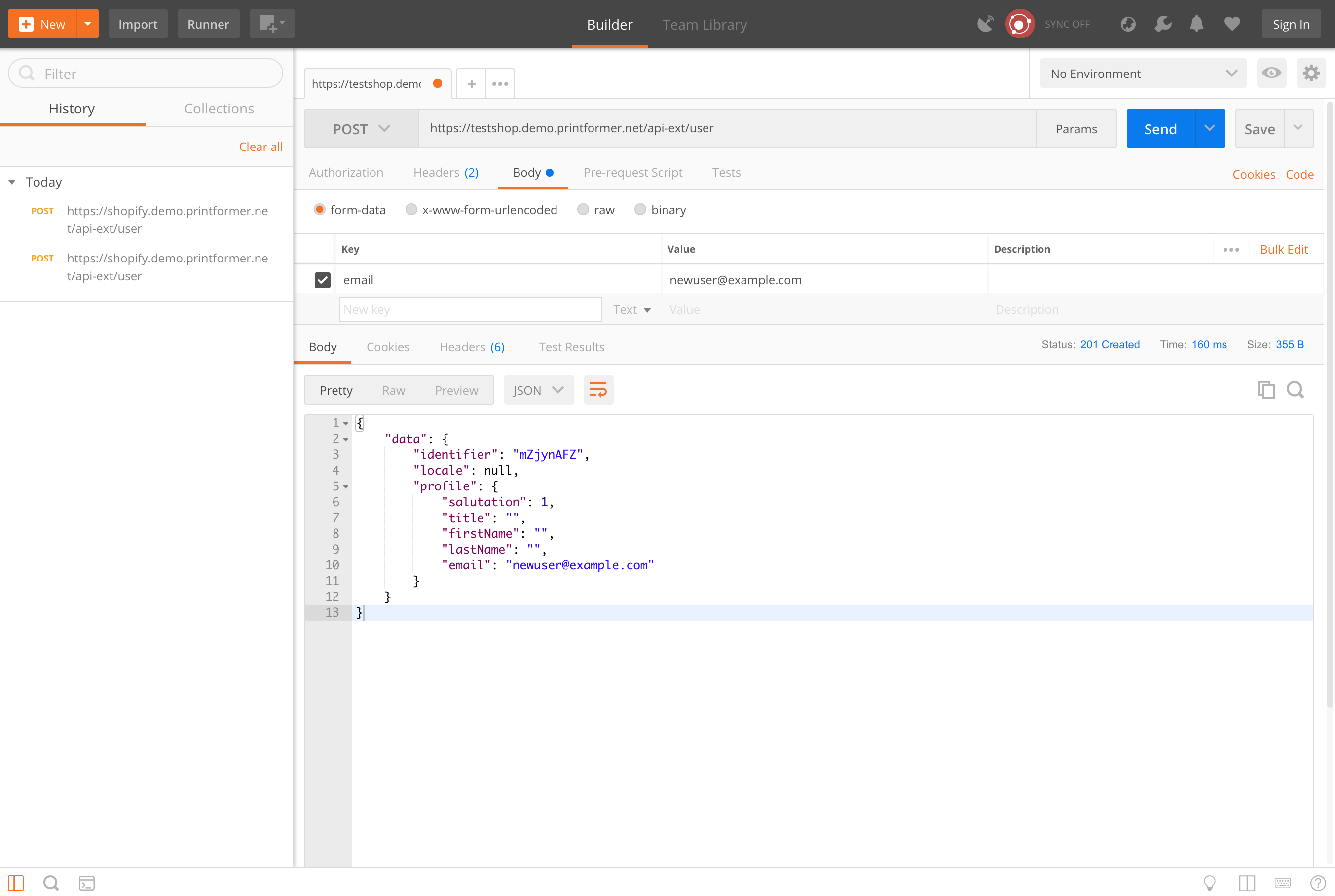
First we call Method “api-ext/user” with Postman and add authorization header that contains a combination of the word Bearer and API Key which is separated by a space.
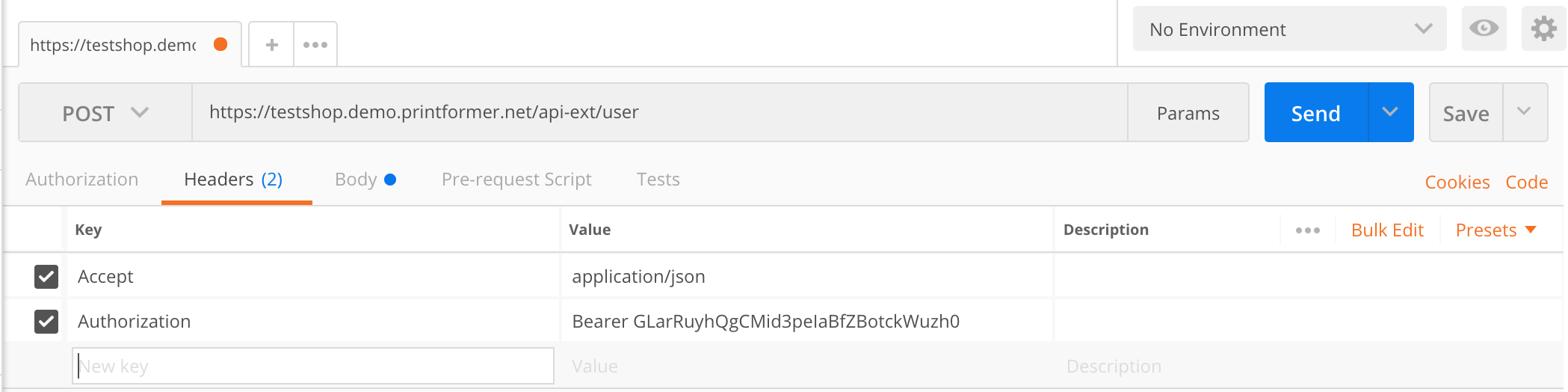
We also add a email address to our user and post our request to method “api-ext/user”. Printformer give us a response with a user identifier that we need in the next steps.
2. Create draft for template
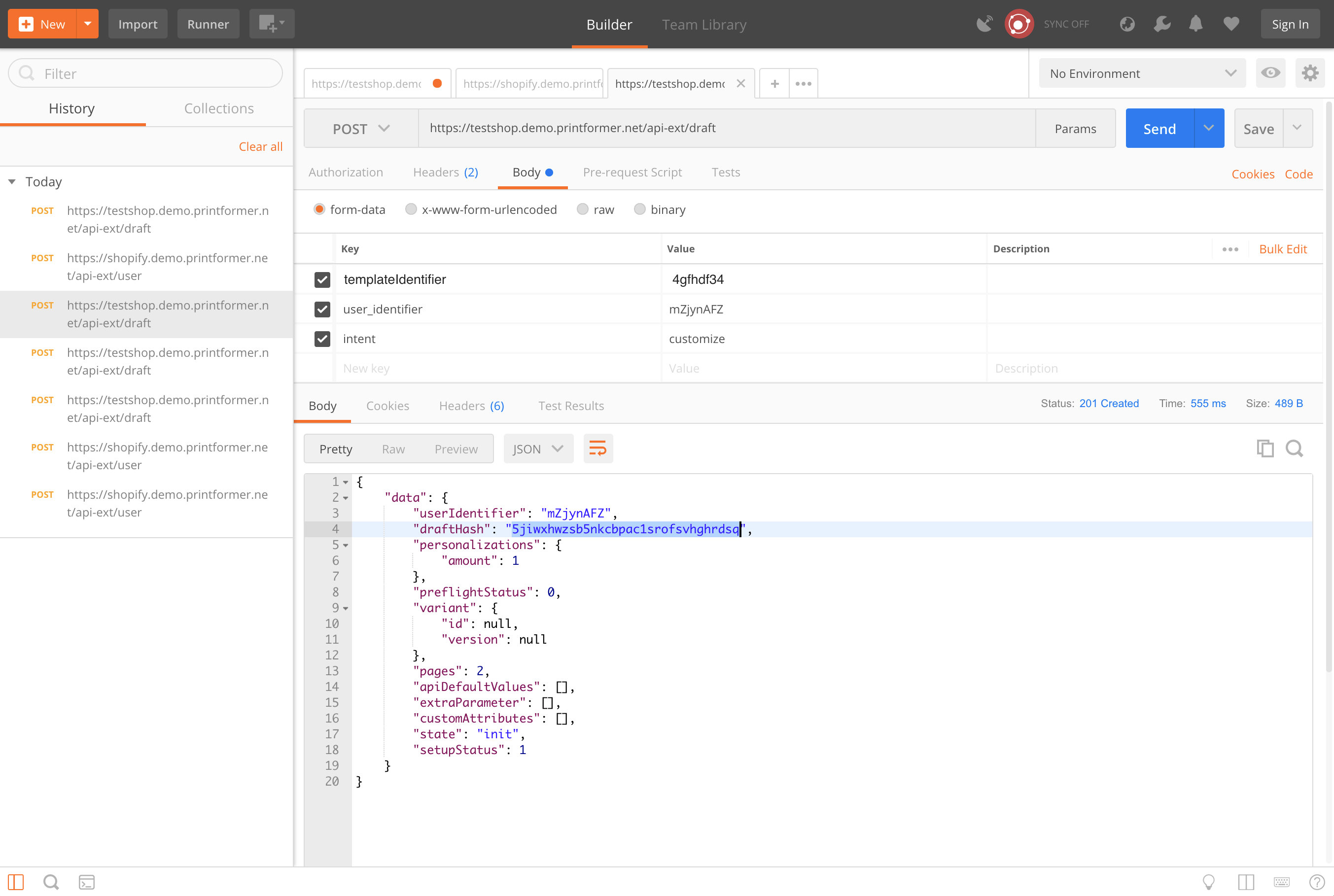
To create a draft we add authorization header and the parameters templateIdentifier, user_identifier and intent and request Method “api-ext/draft”. Printformer give us a response with a draft hash that we need in the next step.
3. Generate JWT
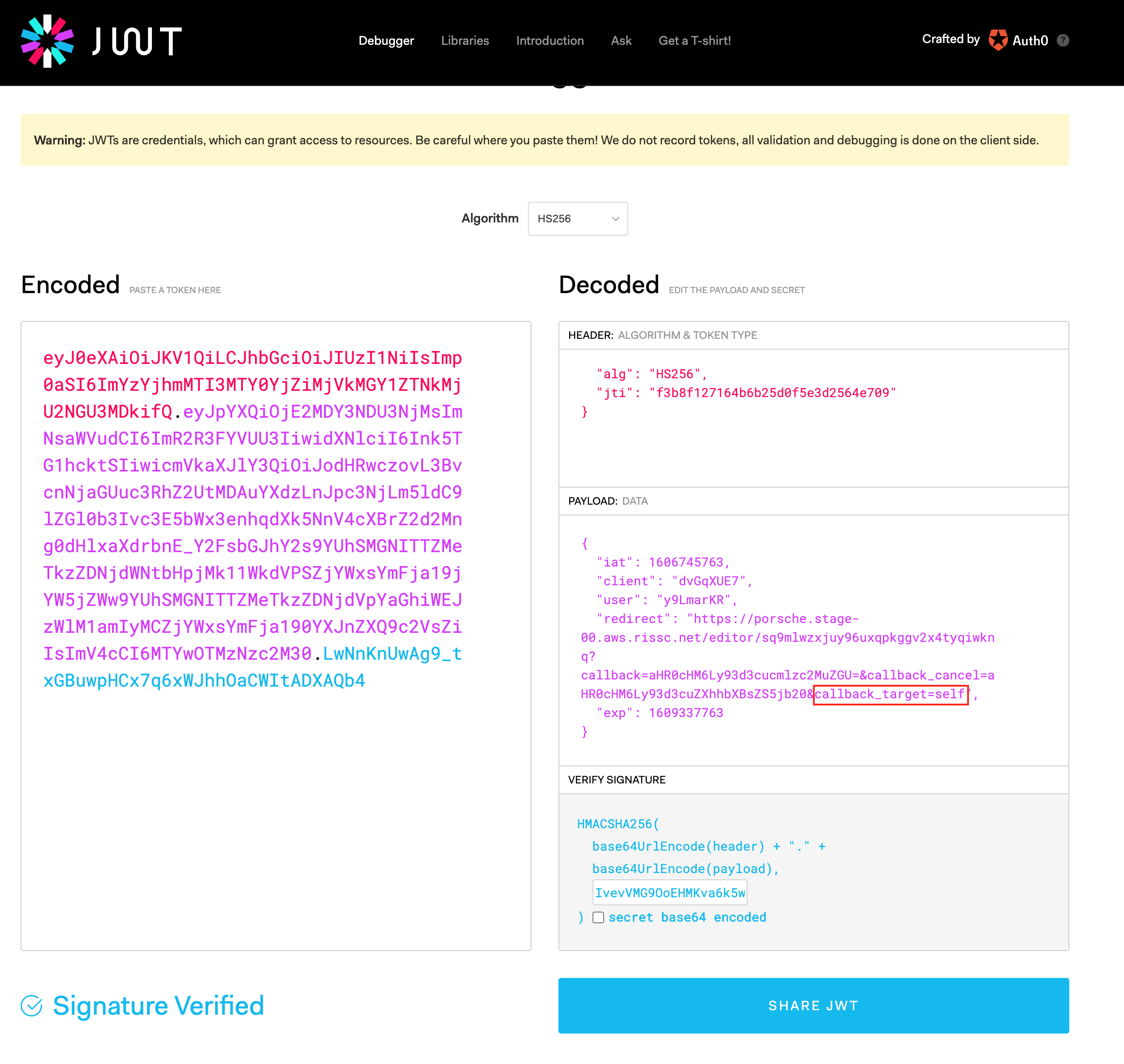
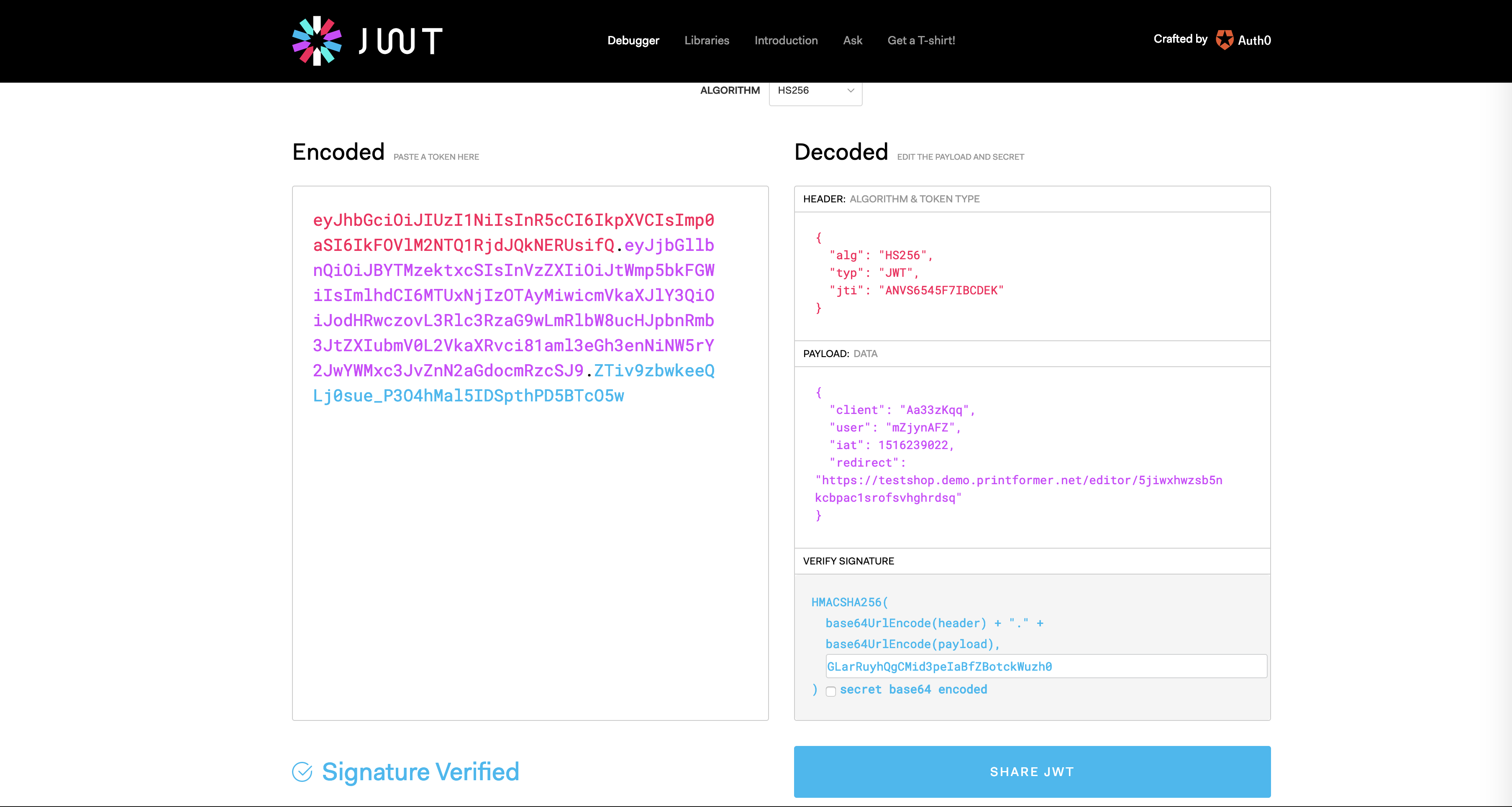
To generate a JWT Token we can use http://jwt.io to decode, verify and generate a token for our editor url in the next step.
We need the following informations to generate our JWT Token:
|
Attribut |
Position |
Example Value |
Description |
|---|---|---|---|
|
jti |
Header |
ANVS6545F7IBCDEK |
Random String that only can use one time |
|
client |
Payload |
Aa33zKqq |
printformer API credentials |
|
user |
Payload |
mZjynAFZ |
we create user in step 1 |
|
iat |
Payload |
1516239022 |
timestamp |
|
redirect |
Payload |
https://testshop.demo.printformer.net/editor/5jiwxhwzsb5nkcbpac1srofsvhghrdsq |
redirect to editor url after user login. Editor url contains draft hash in url we create in step 2 |
After that you need to verify signature JWT with printformer API Key.
4. Generate JWT
After you generate your JWT you can jump into editor with the following url:
{printformer URL}/auth?jwt={JWT Token}
Example URL:
https://testshop.demo.printformer.net/auth?jwt=eyJhbGciOiJIUzI1NiIsInR5cCI6IkpXVCIsImp0aSI6IkFOVlM2NTQ1RjdJQkNERUsifQ.eyJjbGllbnQiOiJBYTMzektxcSIsInVzZXIiOiJtWmp5bkFGWiIsImlhdCI6MTUxNjIzOTAyMiwicmVkaXJlY3QiOiJodHRwczovL3Nob3BpZnkuZGVtby5wcmludGZvcm1lci5uZXQvZWRpdG9yLzVqaXd4aHd6c2I1bmtjYnBhYzFzcm9mc3ZoZ2hyZHNxIn0.Y0oQp_H6LRRcPOFxXRFpABLrqtVEdn58WZtFytR7AQU
5. Add callback URL and callback_cancel URL to JWT to extend redirection options
To redirect the user to a specific URL after entering the editor and choosing “done/Fertig” extend the redirect link in the payload section by adding a base 64 encoded callback URL:
https://testshop.demo.printformer.net/editor/5jiwxhwzsb5nkcbpac1srofsvhghrdsq
?callback={base64encodedURL}
In case of redirection after cancellation of the procedure “cancel/Abbruch“ add a base 64 callback_cancel URL“
https://testshop.demo.printformer.net/editor/5jiwxhwzsb5nkcbpac1srofsvhghrdsq
?callback_cancel={base64encodedURL}
Combined Solution:
.png?cb=a8f63ba835d66e66525c316fdcce9423)
With callback_target = top or self you can decide in which window the redirect need to be executed. This is only important when editor was embedded via iFrame. Default value is top.