
Block content validations can be assigned here without having to adapt IDML.
The assignment can be made across templates (and pages) or clients and a differentiation can be made as to whether the validation should only apply to existing blocks and/or new elements inserted by the user.
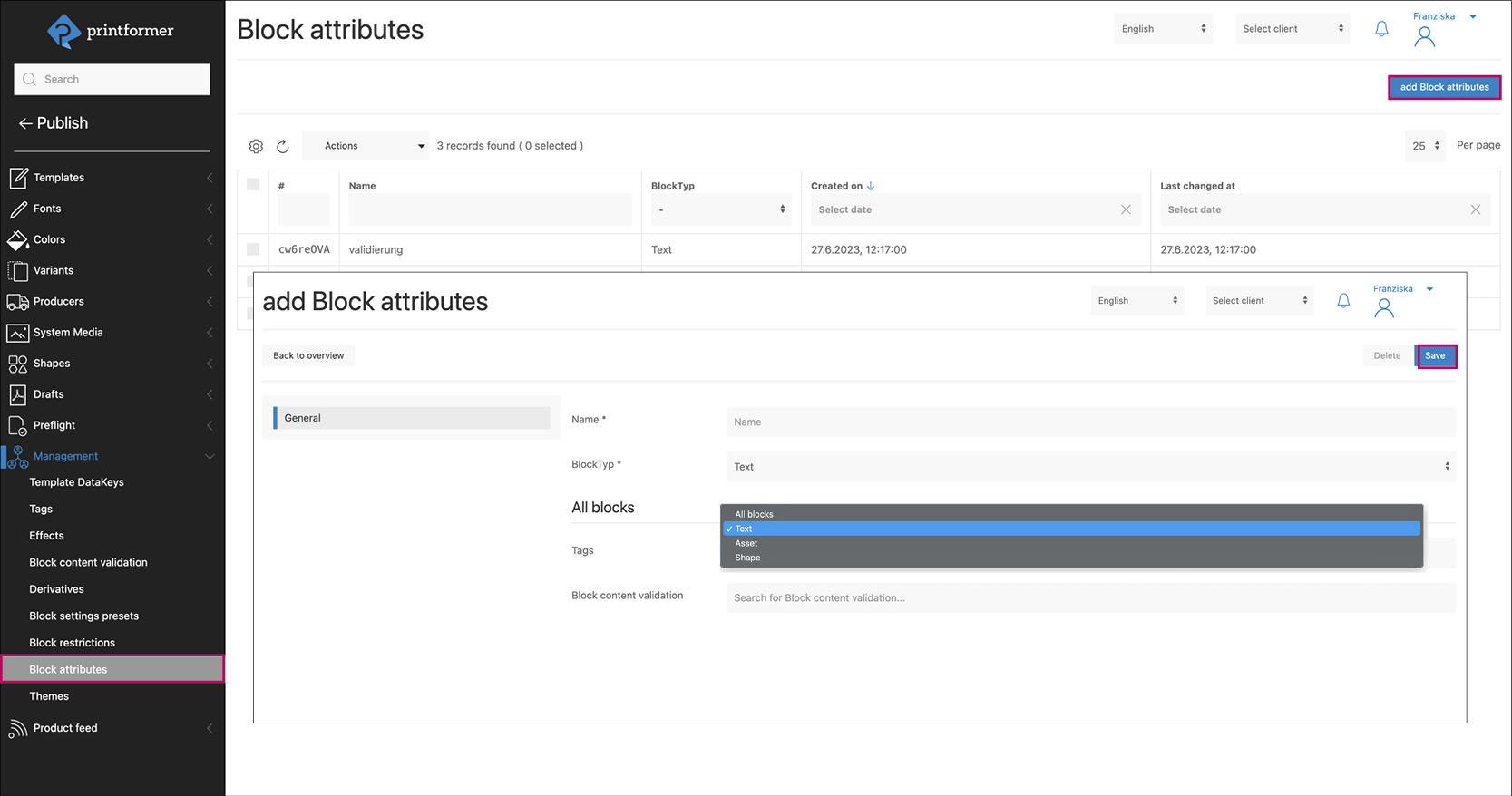
Create Block Attribute
Firstly, a Name is assigned and the Blocktype (text, asset, shape or all) for which the settings are to apply is selected. Under Block content validation, a drop-down menu appears for selection after entering the first three letters of the name (of the existing validations).
An additional input option appears for image blocks (block type Asset);
The alignment of the image within the image frame can be defined here: horizontal alignment (center, left, right), vertical alignment (center, top, bottom)
Assign block content validation to a template
Template-Settings: Editor > Block settings > Block attributes
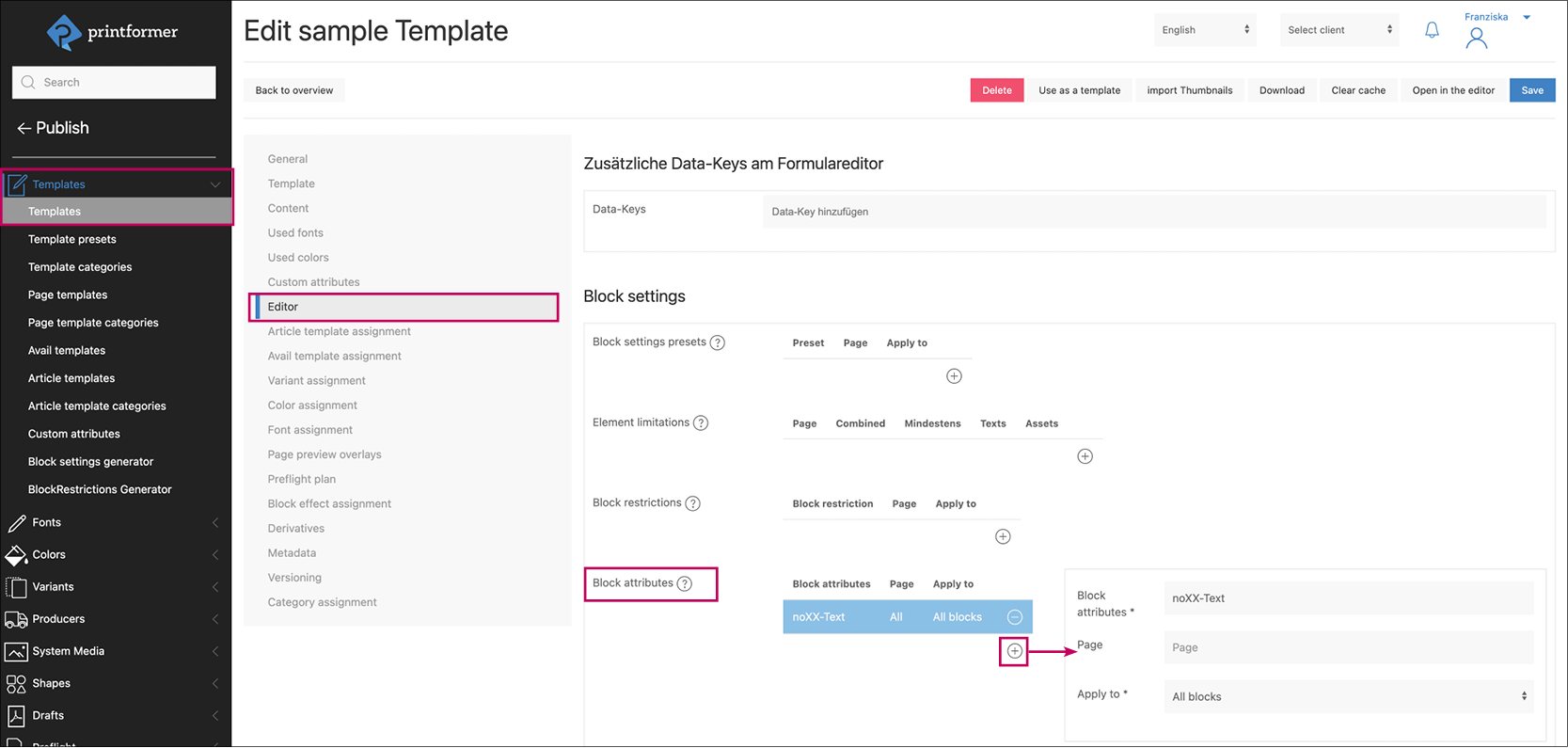
These are selected and added using the plus symbol:
By entering the first three letters of the name under Block attributes, a drop-down selection appears. After selecting the attribute, it is assigned to one or all pages of the template.
Then select the blocks for which the restriction should be applied: existing blocks, blocks added by the user or all blocks.
Assign block content validation across clients or systems
Settings: Editor > Block attributes
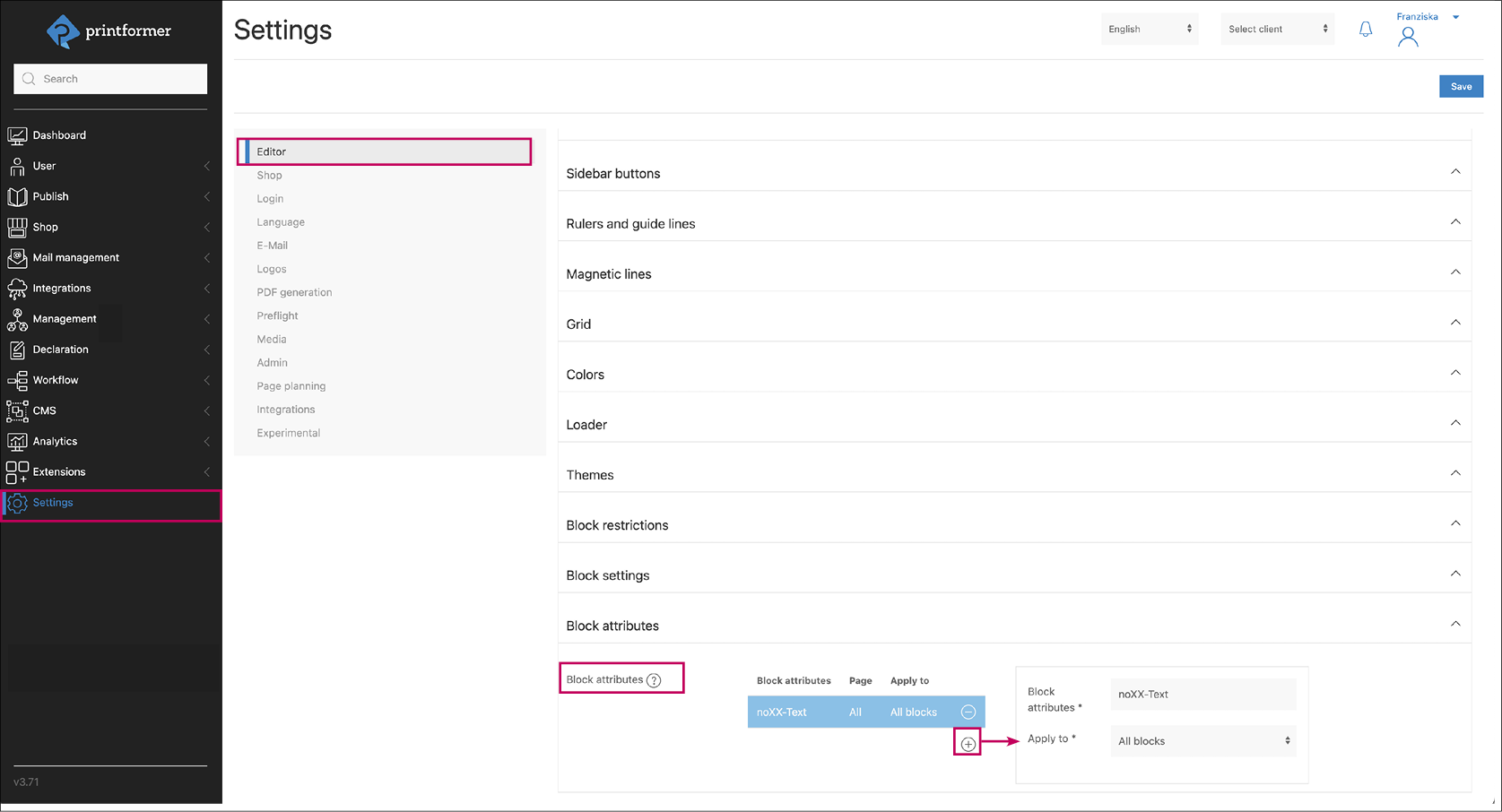
These are selected and added using the plus symbol:
By entering the first three letters of the name under Block attributes, a drop-down selection appears. After selecting the attribute, it is assigned to one or all pages of the template.
Then select the blocks for which the restriction should be applied: existing blocks, blocks added by the user or all blocks.