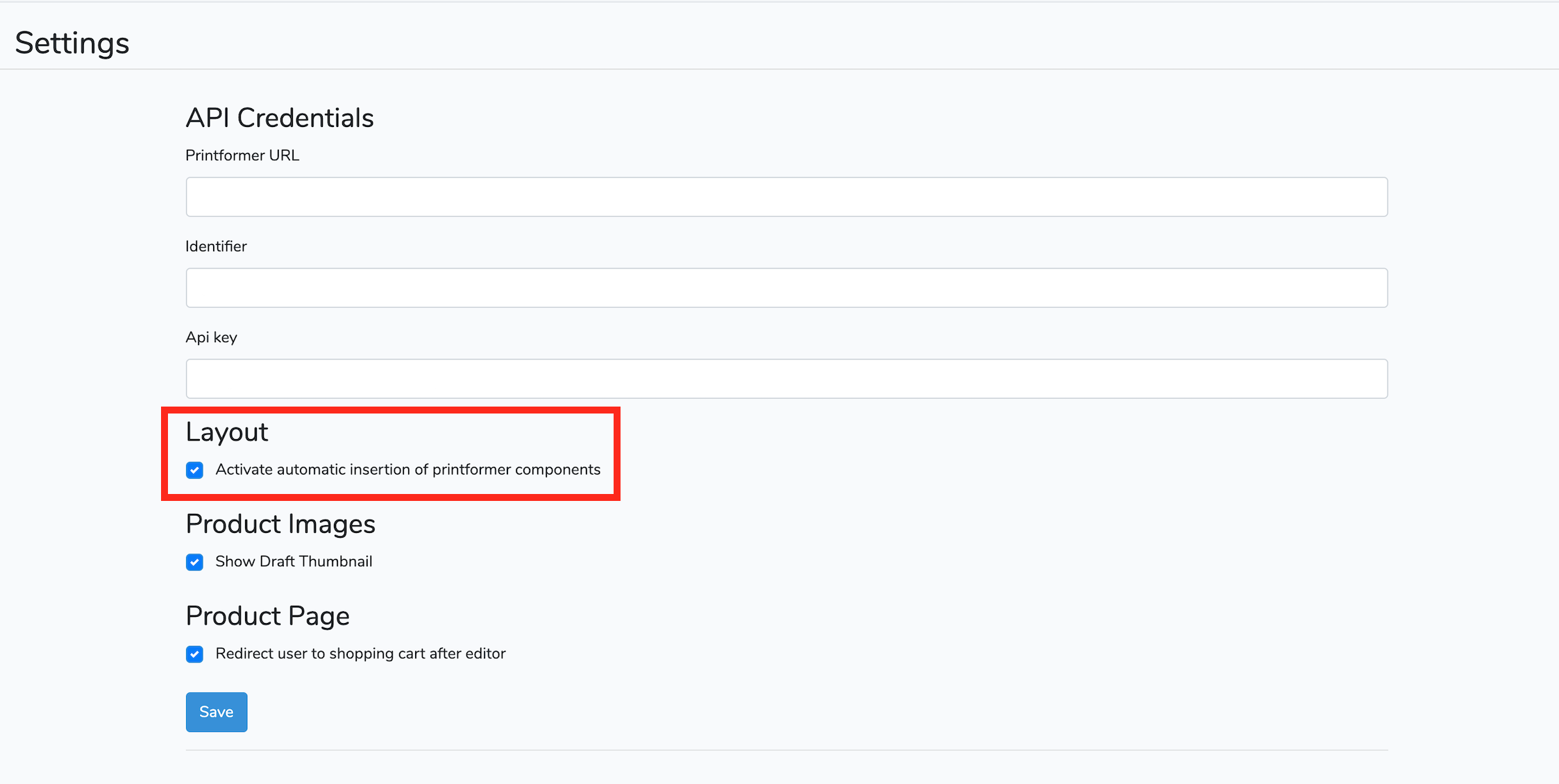
When our printformer components like the design Button or 3D Button not shows correctly in your Template, you can disable the automatically insertion of layout components in the settings under the section Layout. After that follow the Step-by-Step instruction to insert this components in your Template.
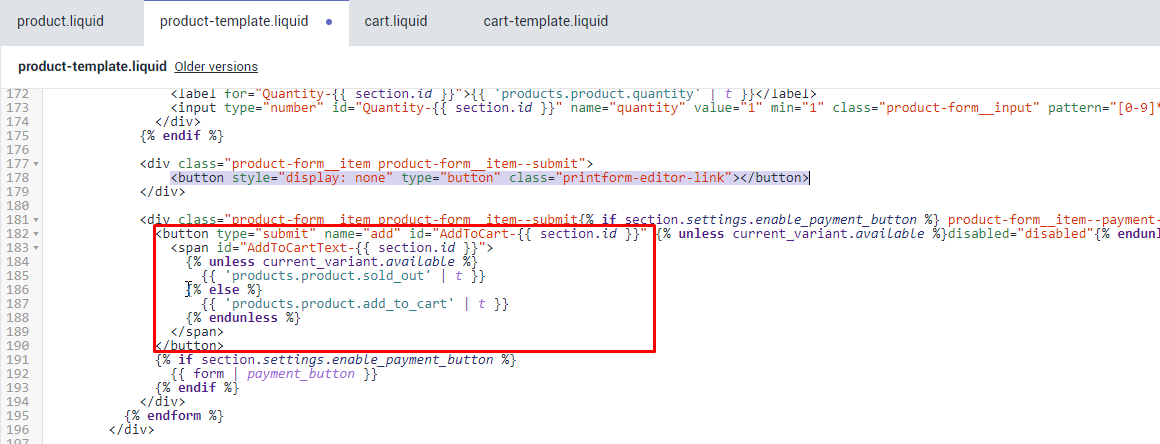
File: sections/product-template.liquid
Find "add to cart button" and insert button above with appropriate container
<button style="display: none" type="button" class="printform-editor-link"></button>
Find main product image and attach additional css class " printformer-main-image "
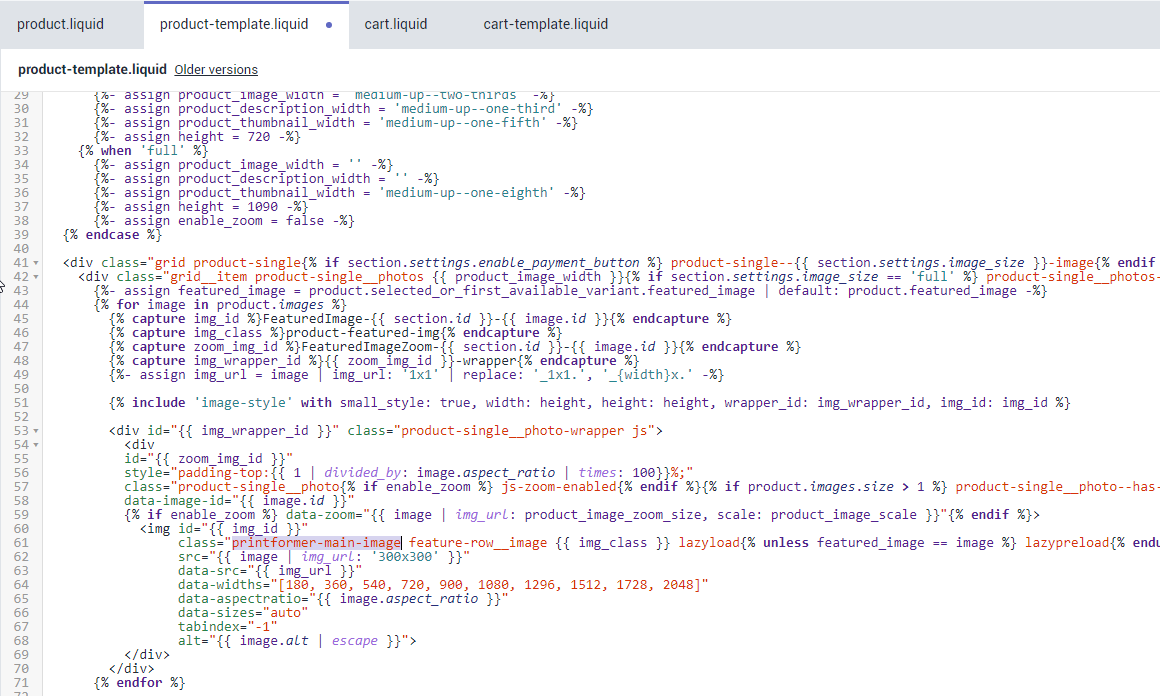
Additionally add 3D view link right after product image block
<a href="#" class="printform-3d-link" style="display: none">3D</a>
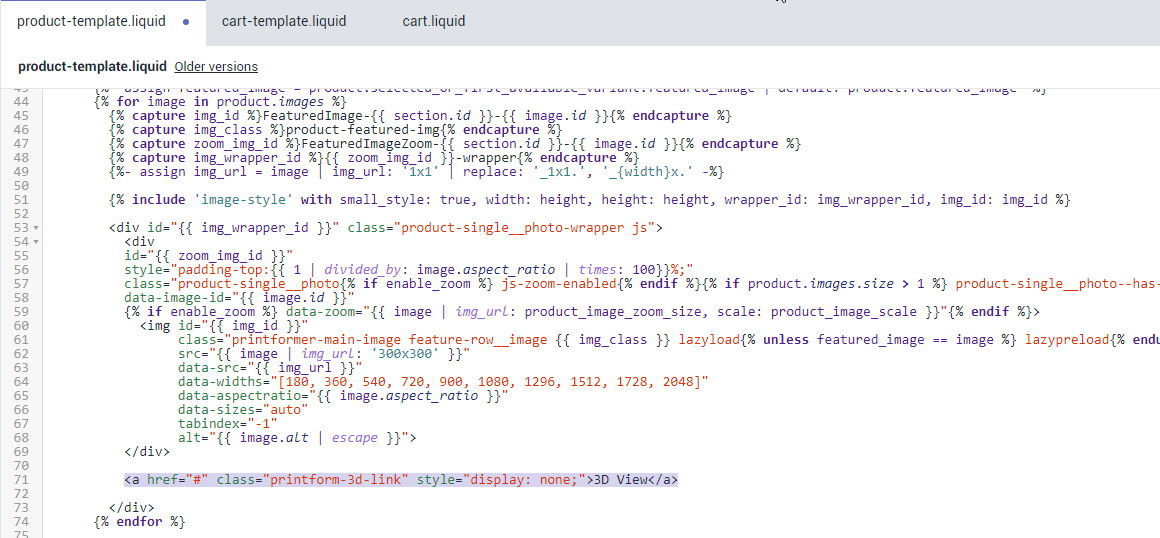
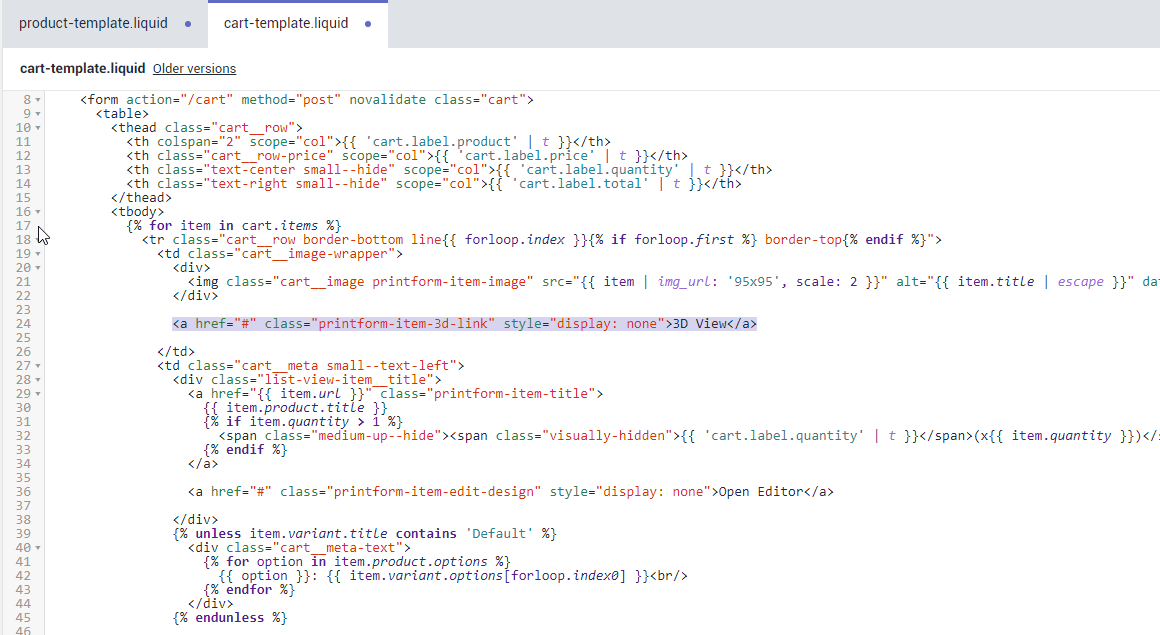
File: sections/cart-template.liquid
Attach additional css class " printform-item-title " to product's title link
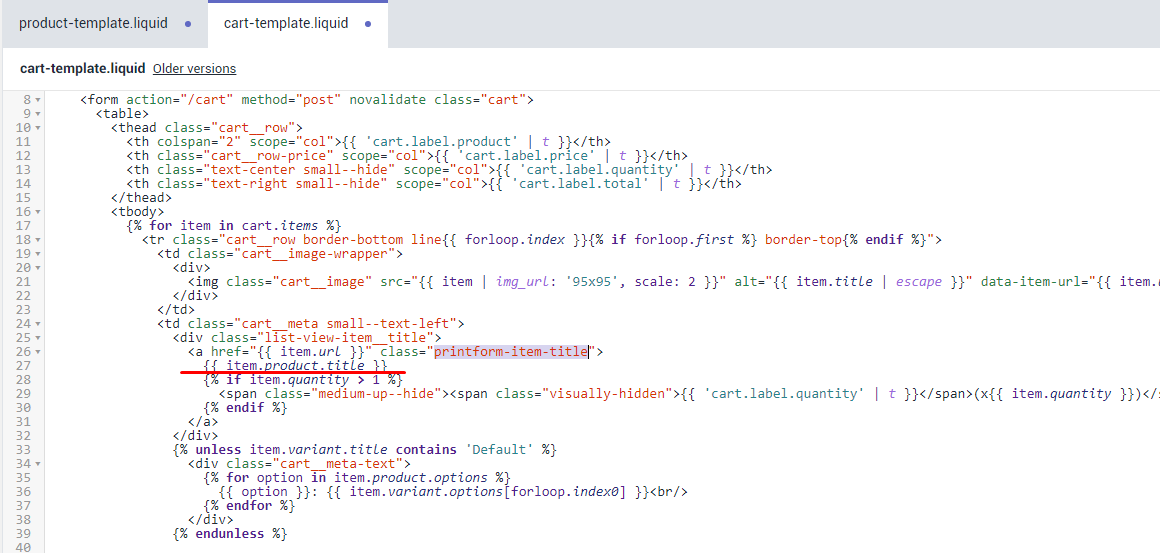
Insert editor link just right after product title link
<a href="#" class="printform-item-edit-design" style="display: none">Open Editor</a>
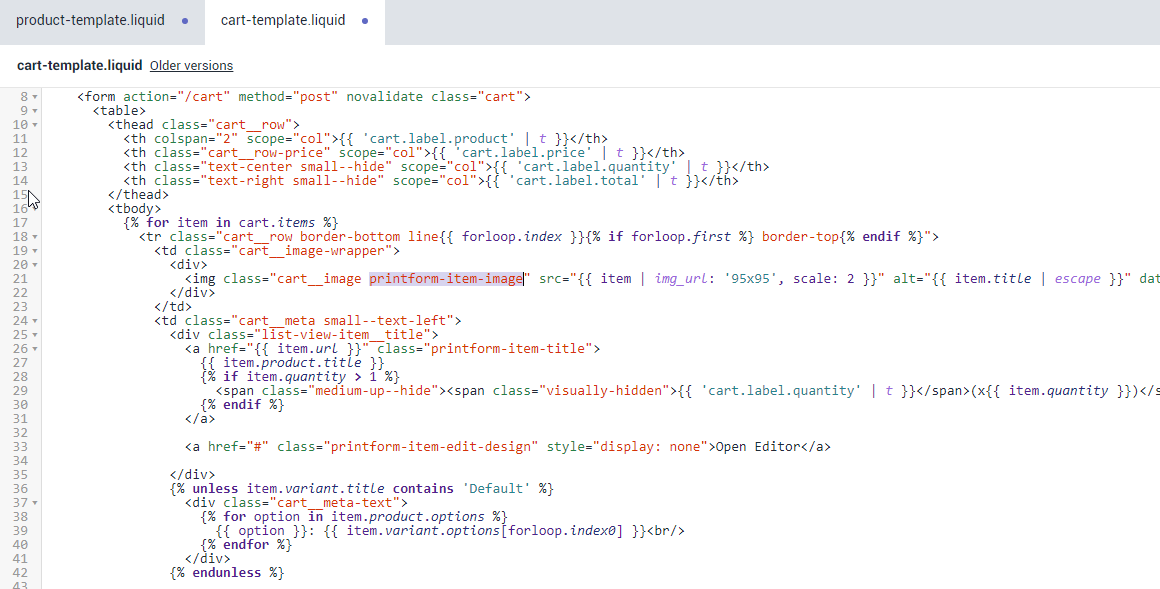
Attach additional css class " printform-item-image " to product's image
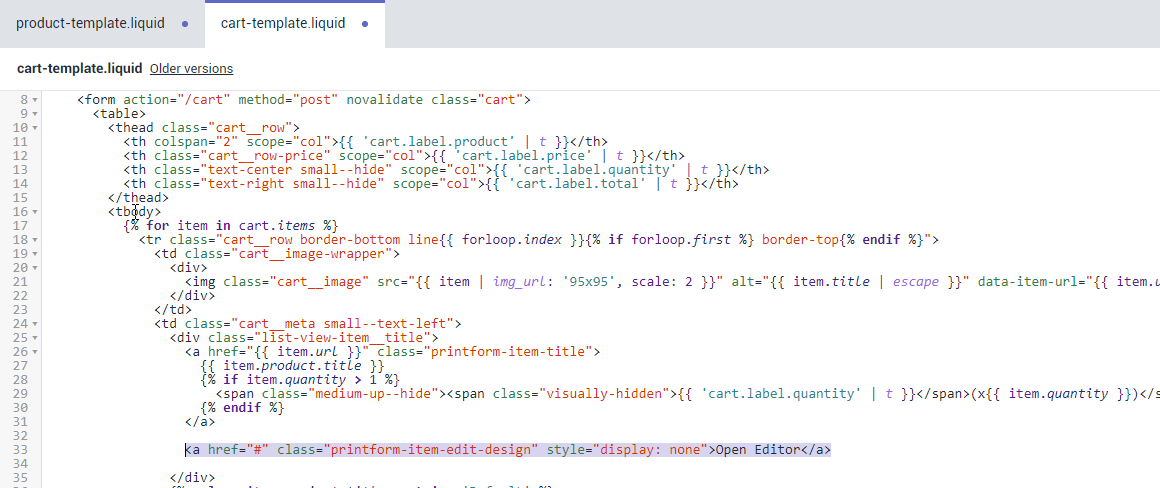
Additionally add 3D view link right after product image
<a href="#" class="printform-item-3d-link" style="display: none">3D</a>